Keeps counting offline
If the internet drops, the scanner keeps counting. Captures stay safe on the device and are sent as soon as the connection is back.
NP PRO turns your Android scanners and mobile computers – for example from Zebra – into stocktaking scanners. We adapt the app to your device model and Android version: scan the zone, capture items, keep counting – even when the store loses internet. The inventory lead sees every zone live in the NP Inventur program.
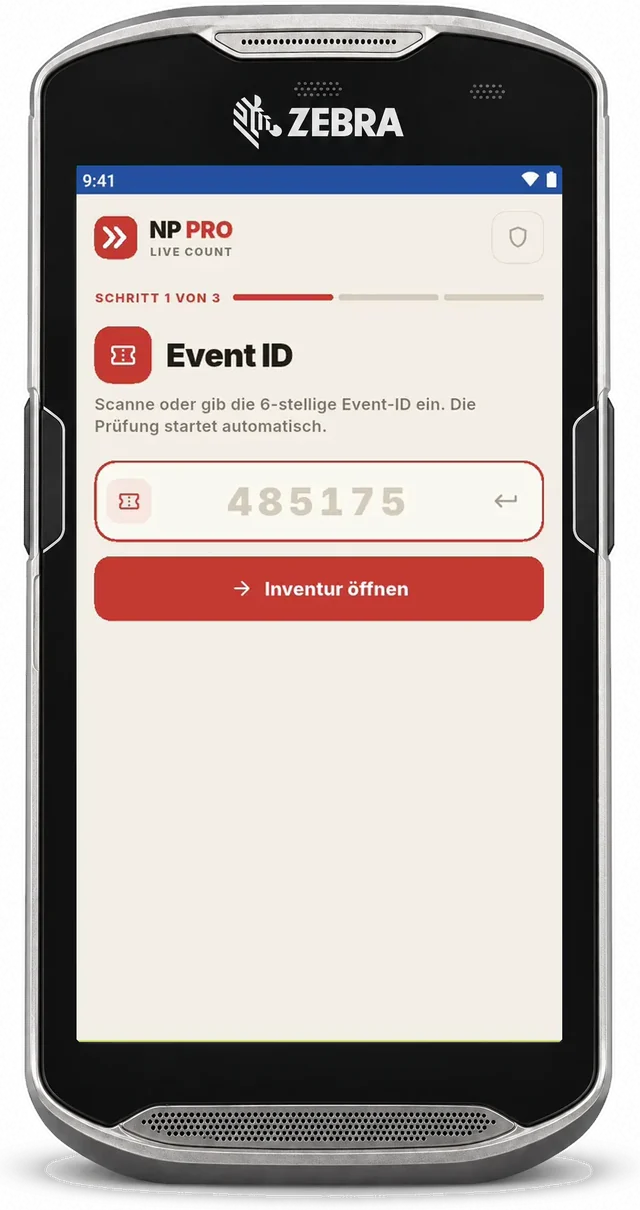
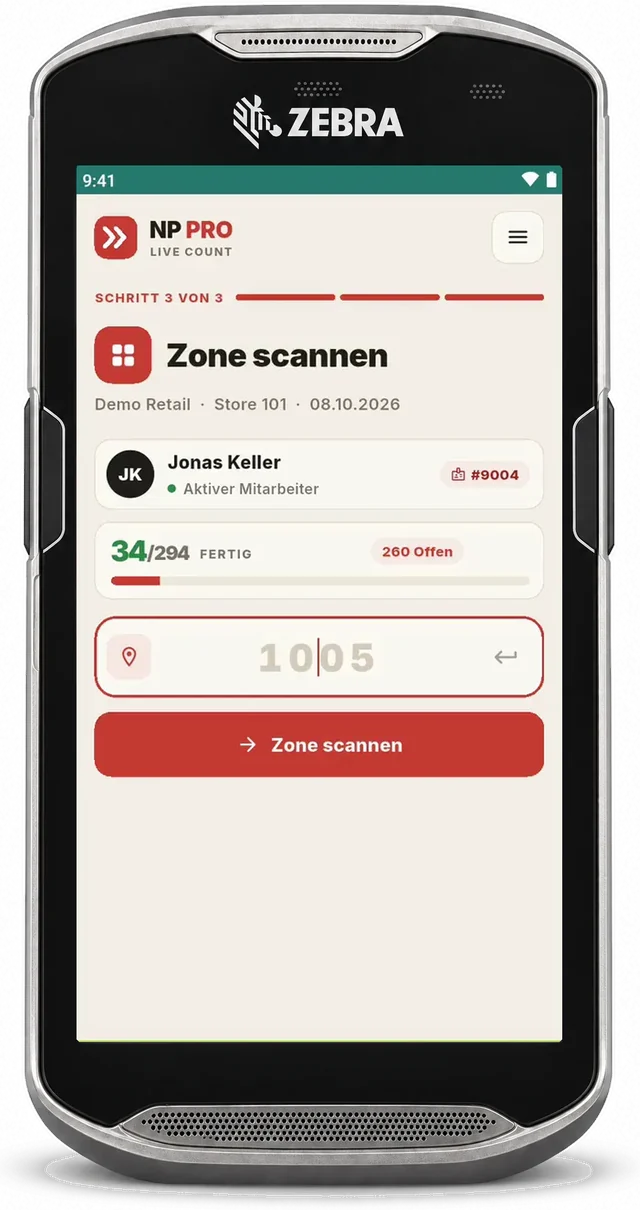
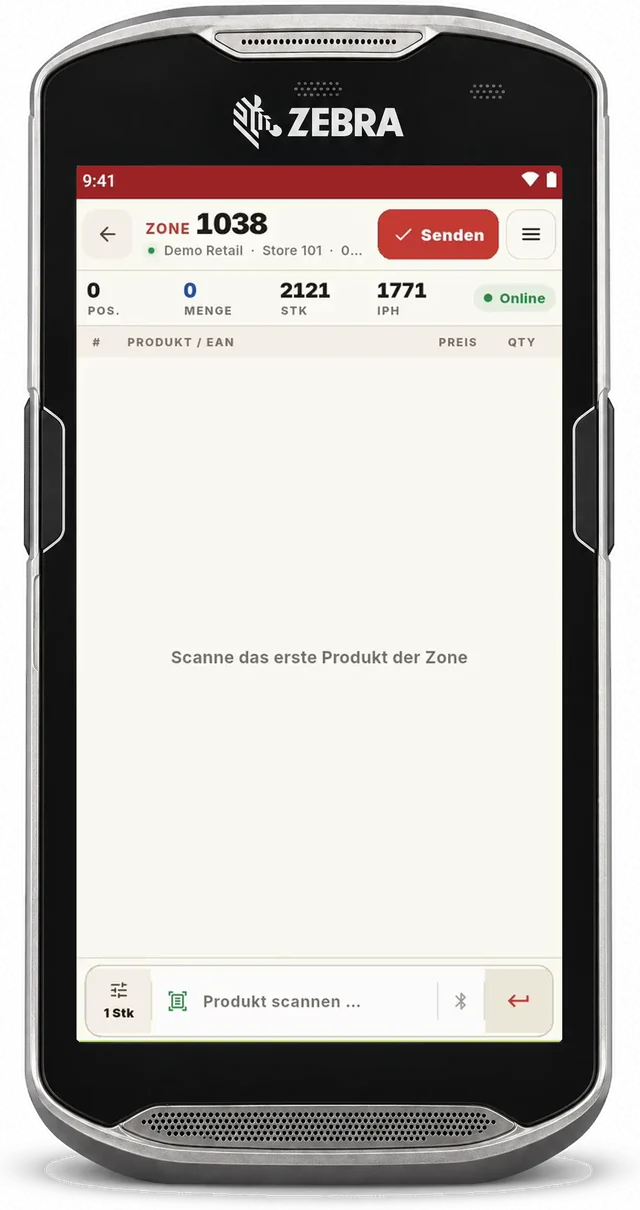
Example: Zebra TC56. NP PRO is adapted to your Android device – model and Android version are agreed together.
A stocktake with barcode scanners is only as good as the data that arrives from the devices. That is why every single capture in NP Inventur gets a unique ID. Nothing is counted twice and nothing is lost – not even when a scanner briefly drops off the Wi-Fi and sends again later.
Counters sign in with their badge, scan the zone and capture the items. Every completed zone appears immediately in the inventory lead’s program on Mac or Windows – with quantity, value, time and counter.
If the internet drops, the scanner keeps counting. Captures stay safe on the device and are sent as soon as the connection is back.
The scanner loads the client’s item catalogue by QR code straight from the inventory lead’s laptop – even without internet in the store.
Optionally, scans run through the laptop on the local Wi-Fi. It stores every capture and forwards it to the server in the right zone order.
Scan the zone, the employee badge, the items: every quantity belongs to a zone and a person – the basis for checks, ranking and TCA.
Progress per zone, area range and team leader in real time – in the program for Mac and Windows and in the client portal.
NP checks and client checks have their own tablet: recount zones, confirm or correct differences.
Android scanners and mobile computers from different manufacturers, for example Zebra. The NP PRO app is adapted to your device model and Android version – we agree together on which device fits.
No. NP Inventur is the software; you choose the devices. We check your model and adapt NP PRO to it.
Yes. The scanner keeps counting offline and sends the captures later. With the laptop as scanner hub, scans run through the laptop on the local Wi-Fi, which keeps them until the server is reachable again.
The client’s catalogue is imported as CSV, Excel or in the client format. The scanner loads it by QR code from the inventory lead’s laptop.
Every capture carries a unique ID. If a scanner sends the same data again, it is not counted twice.
As PDF, Excel, CSV and TXT, and in each client’s own format. Which reports appear is set per client.
Both are possible. We prepare the offer on request.